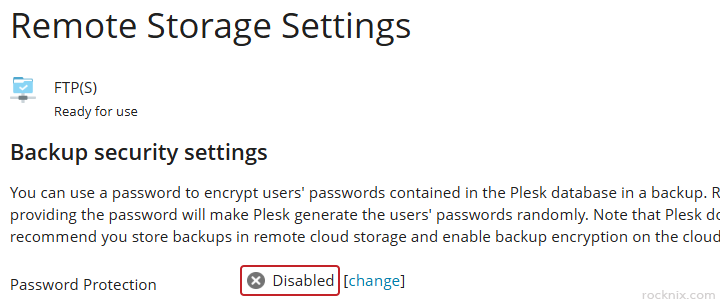
If you regularly restore data from backups in Plesk, entering a password every single time can start to feel unnecessary. While Password Protection helps secure backup files, there are cases where turning it off makes day-to-day management more convenient, especially if your backups are already stored in a secure environment. This guide walks you through how to disable backup password protection in Plesk step by step.
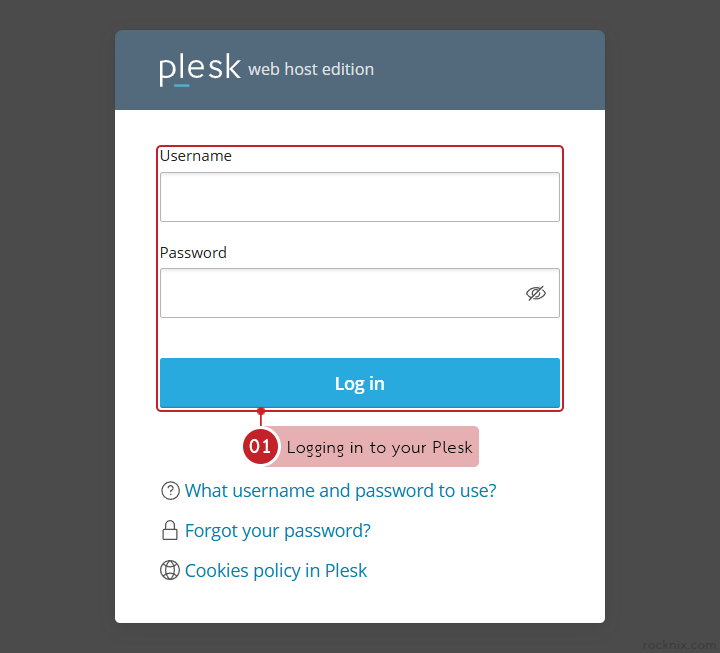
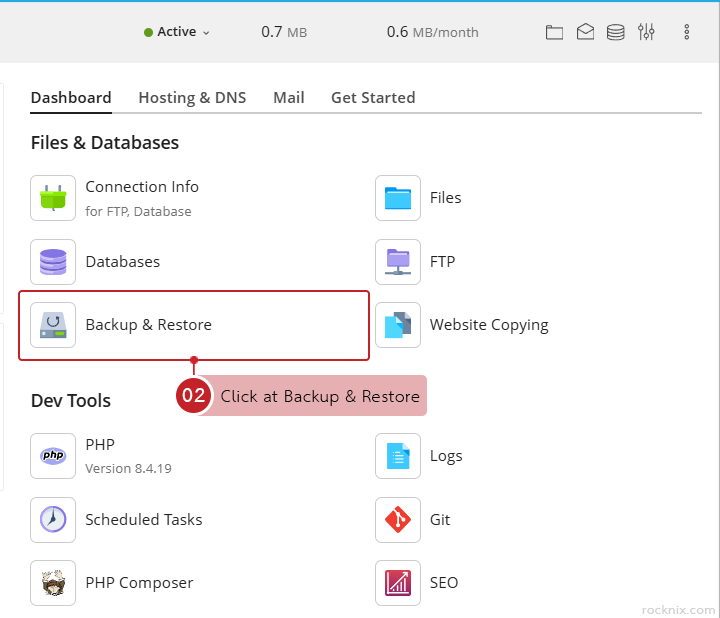
In the domain where you want to disable Password Protection, go to Files & Databases and click at Backup & Restore.

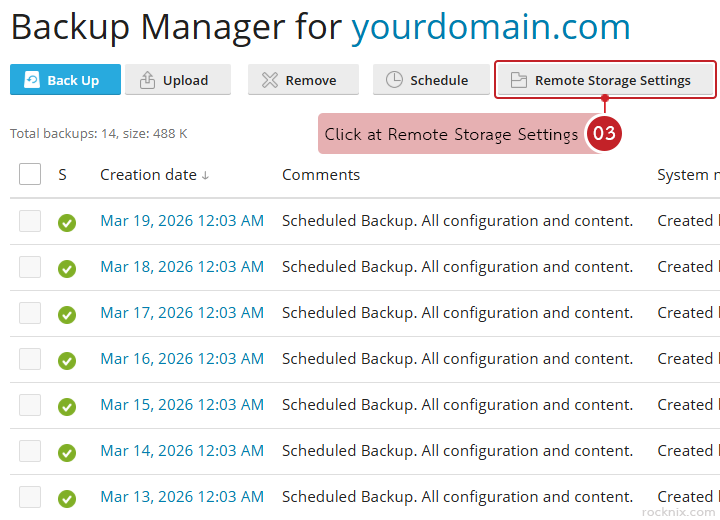
Click at Remote Storage Settings.

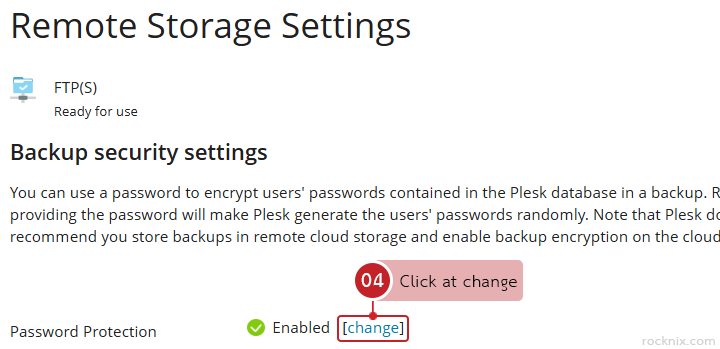
Click at change to edit the backup security settings.

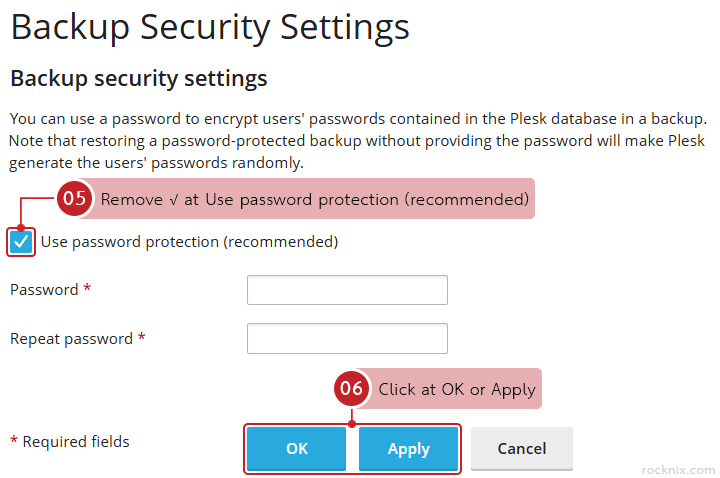
Remove √ at Use password protection (recommended), then click at OK or Apply to save the changes.

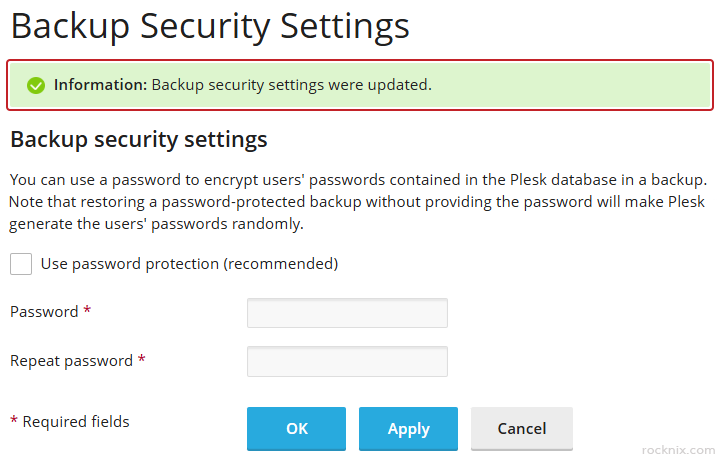
Plesk will confirm that the backup security settings have been updated.

After that, when you return to the Backup Security Settings page, the Password Protection status will display as Disable.

If you’re looking for secure and easy-to-manage hosting, you can explore available plans to find one that fits your website.

👉 https://www.rocknix.com/web-hosting