

Keeping backups only on the same server as your website is not always enough. If the main server becomes unavailable, your backup files may be unreachable too. Setting up Remote Backup in Plesk helps add another layer of protection by sending backup files to external storage over FTP or FTPS, separate from your hosting environment. This makes it easier to recover your data when unexpected issues happen.
This guide walks you through how to configure Remote Backup in Plesk using FTP or FTPS, so your website data is stored in an additional off-server location for better security and recovery readiness.
Before configuring Remote Backup, prepare the following:
- The FTP server hostname or IP address of the backup destination.
- The FTP username and password.
- The destination folder for storing backup files, if required.
- Confirmation that the destination server supports FTPS, if you want an encrypted connection.
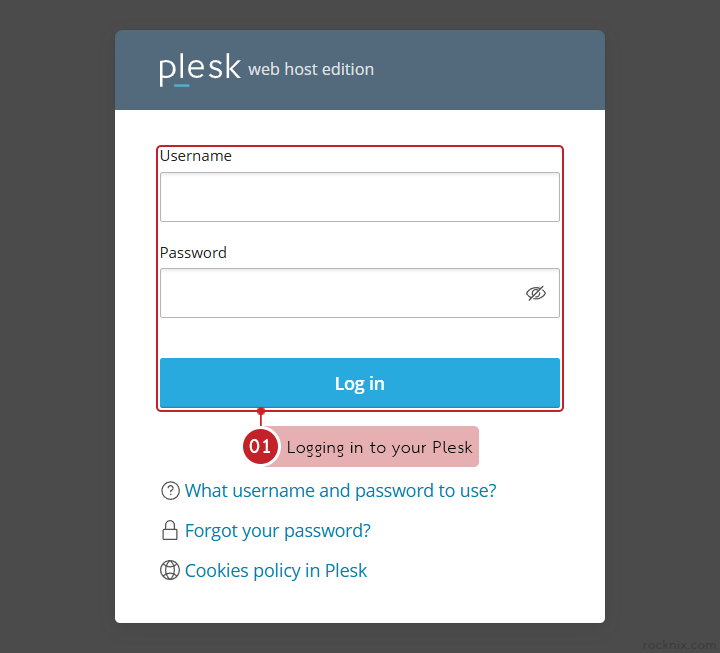
Start by logging in to your Plesk control panel.
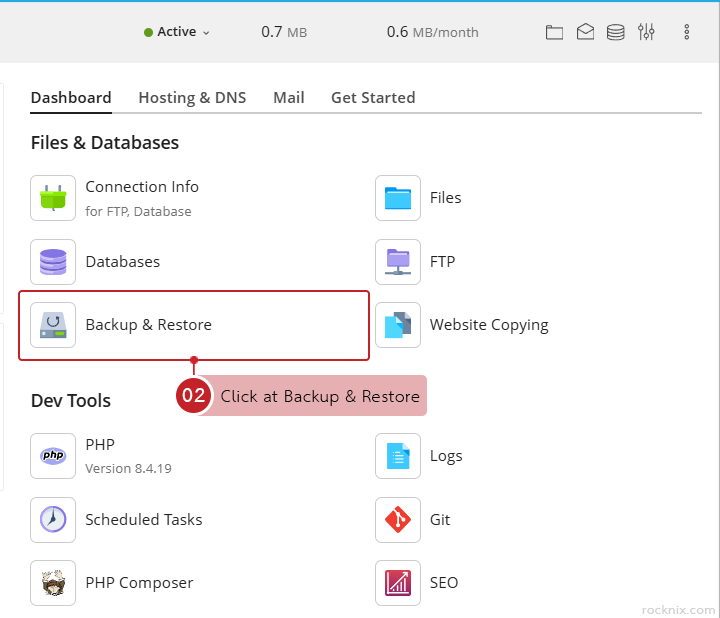
In the domain where you want to configure remote backup, go to Files & Databases and click at Backup & Restore.
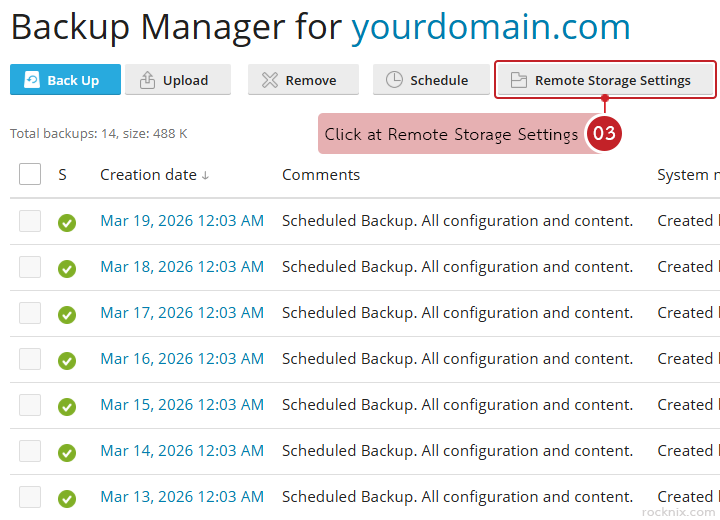
Click at Remote Storage Settings.
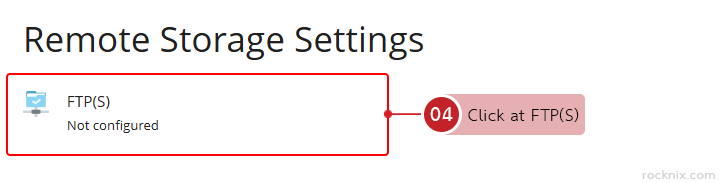
Click at FTP(S)
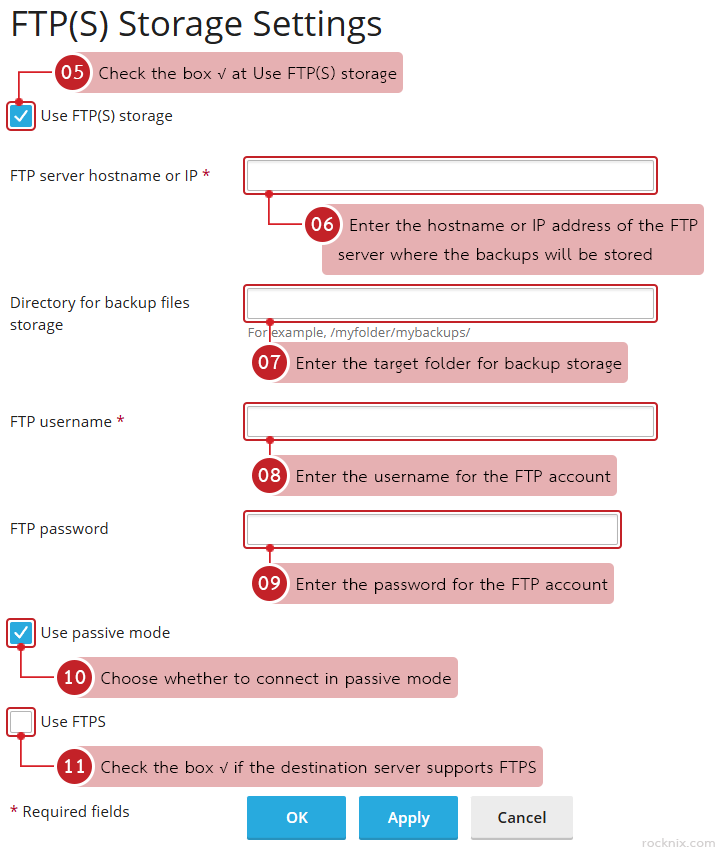
Fill in the backup storage connection settings:
- Use FTP(S) storage: enable this option to allow Plesk to store backup files on FTP or FTPS storage.
- FTP server hostname or IP: enter the hostname or IP address of the FTP server where the backups will be stored.
- Directory for backup files storage: enter the target folder for backup storage. If left blank, Plesk will save the files in the default directory of the connected FTP account.
- FTP username: enter the username for the FTP account.
- FTP password: enter the password for the FTP account.
- Use passive mode: choose whether to connect in Passive Mode. This can help avoid connection issues on some networks or behind certain firewalls. The article states this option is enabled by default.
- Use FTPS: enable this if the destination server supports FTPS and you want a more secure, encrypted backup transfer.
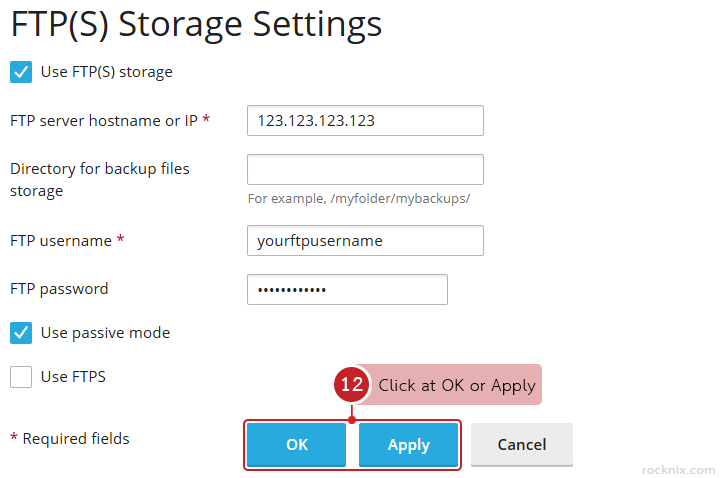
After entering the FTP connection details, click at OK or Apply to save the configuration.
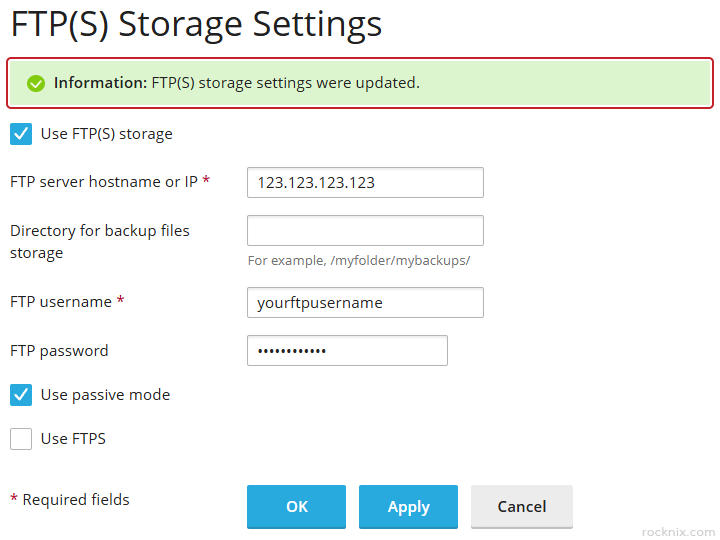
Plesk will confirm that the remote storage settings have been updated.
To make Remote Backup more reliable and secure, keep these points in mind:
- Use FTPS whenever the destination server supports it, so backup transfers are encrypted.
- After finishing the setup, run at least one test backup to confirm that Plesk can successfully send the backup files to the remote destination.
If you’re looking for secure and easy-to-manage hosting, you can explore available plans to find one that fits your website.