Backups are a key part of website management, but the security of backup files is often overlooked. A backup can contain sensitive information such as user credentials, database data, and other important system settings.

In Plesk, you can enable password protection for backups to add an extra layer of security and reduce the risk of unauthorized access.
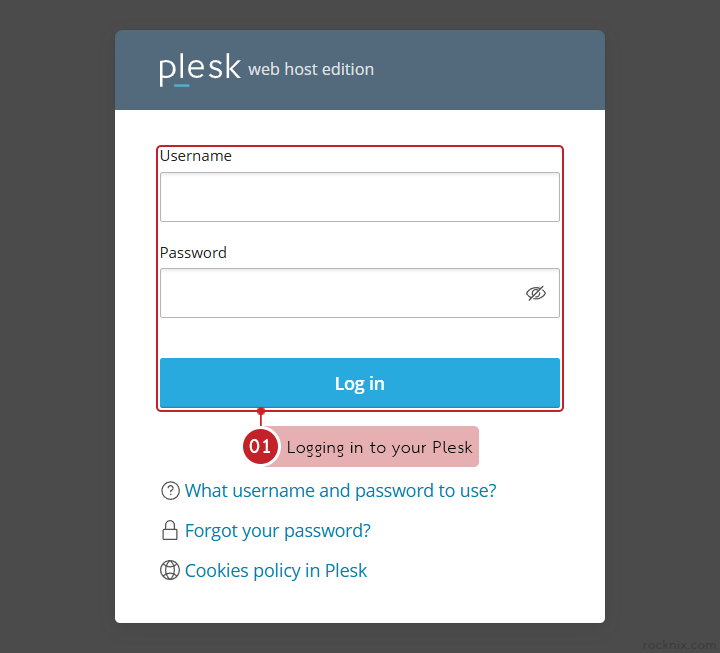
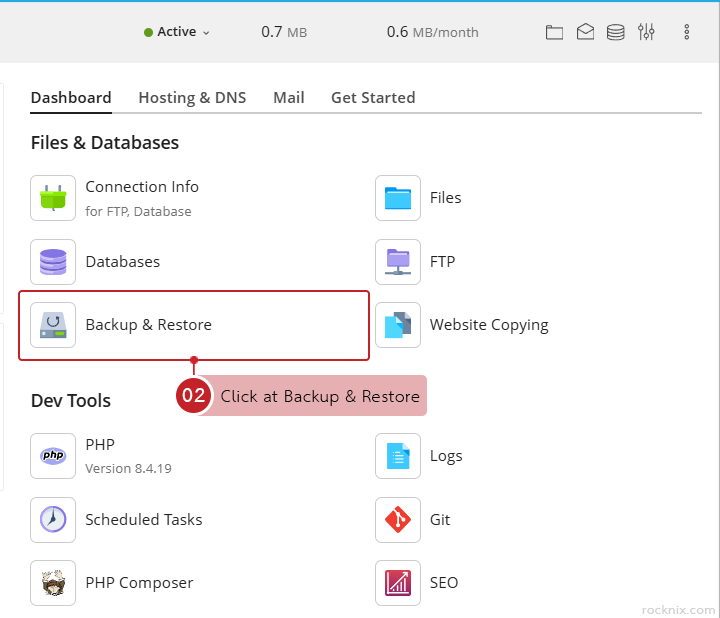
In the domain where you want to protect backups, go to Files & Databases and click at Backup & Restore.

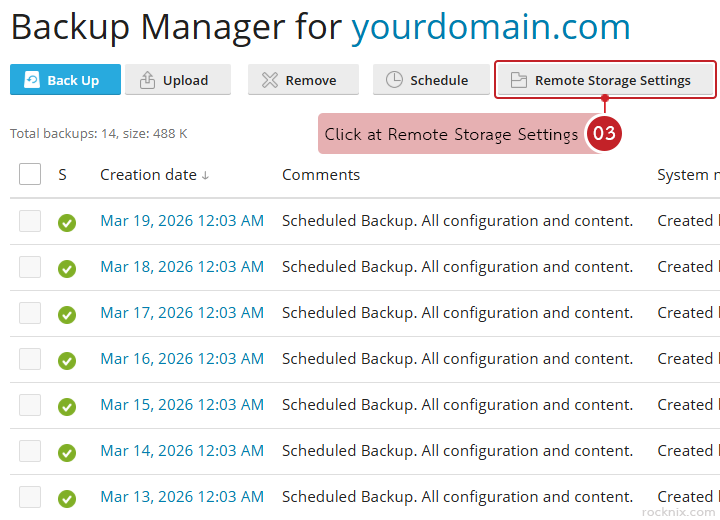
Click at Remote Storage Settings.

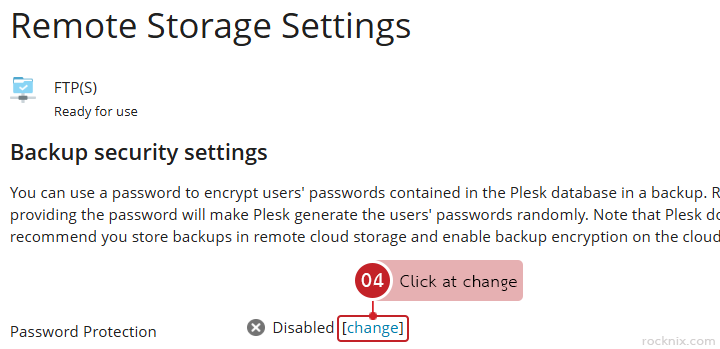
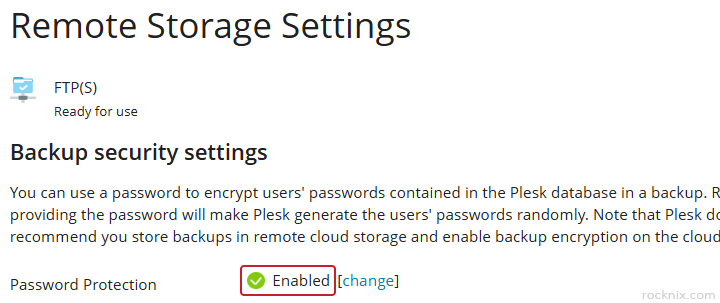
Click at change to edit the backup security settings.

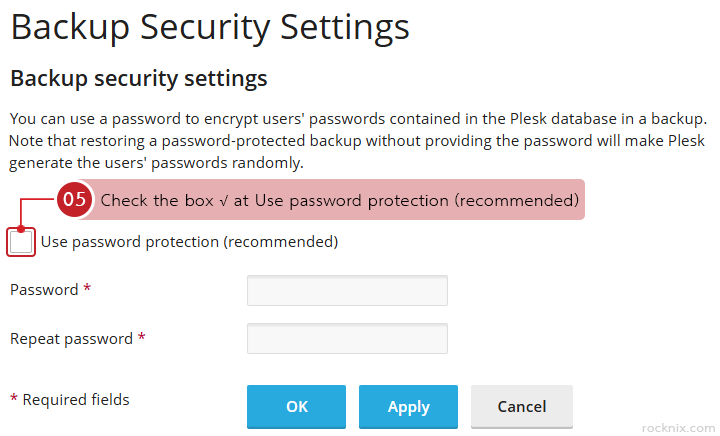
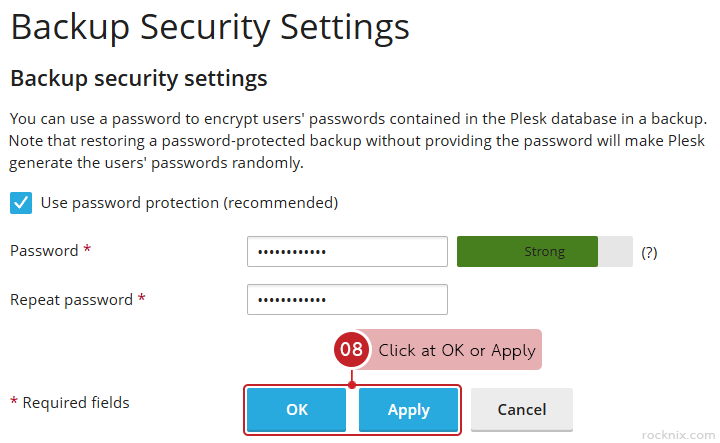
Check the box √ at Use password protection (recommended) to turn on password protection for backups.

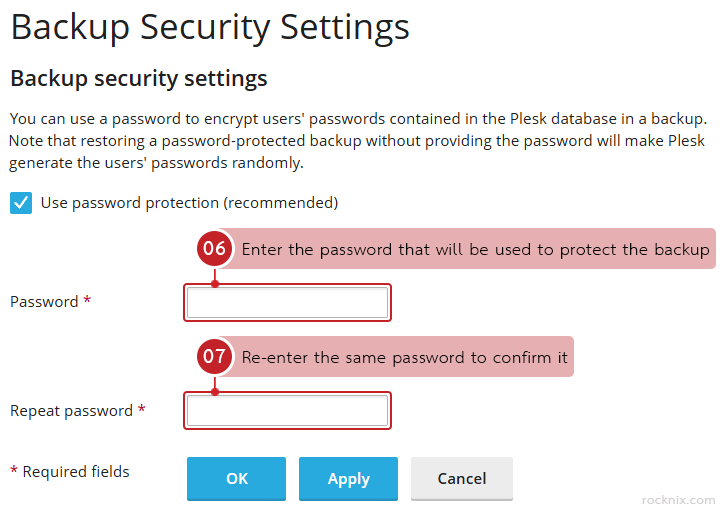
Enter the password you want to use for backup encryption in these fields:

  • Password: the password that will be used to protect the backup
  • Repeat password: re-enter the same password to confirm it

Once the password is set, click at OK or Apply to save the change.

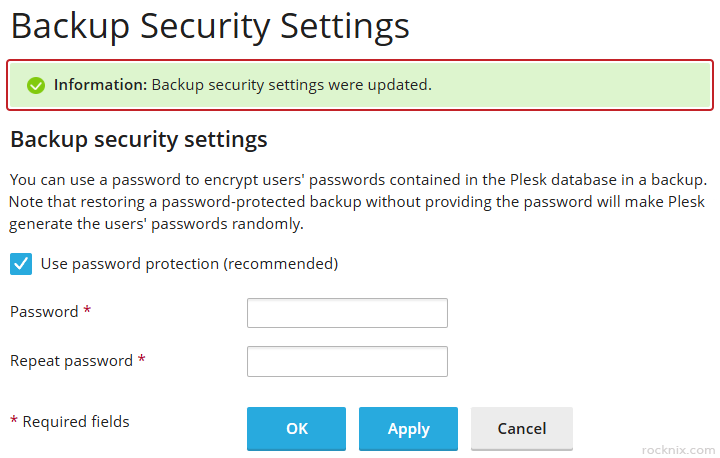
Plesk will confirm that the backup security settings have been changed.

After the settings are updated, when you return to the Backup Security Settings page, the Password Protection status should display as Enabled.

Looking for secure and easy-to-manage web hosting? Explore our hosting plans and choose the package that fits your website best.

👉 https://www.rocknix.com/web-hosting