

Sending limits for outgoing email are an important security setting in Plesk. By controlling how many messages a domain can send per hour, you can reduce the risk of spam abuse, prevent unusual email activity, and help protect your domain or server IP from being blocked. In Plesk, this setting can be configured separately for each domain, which makes it easier to manage email usage based on the needs of each website.
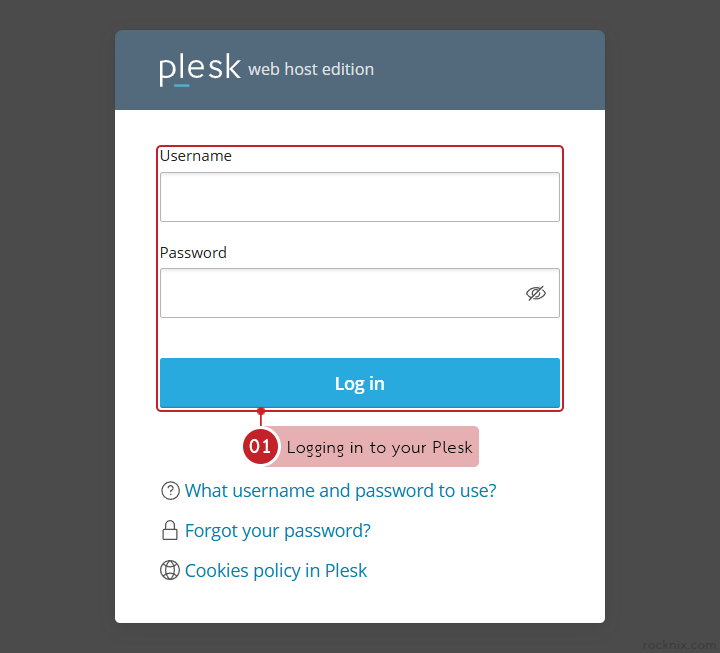
Start by logging in to your Plesk control panel.
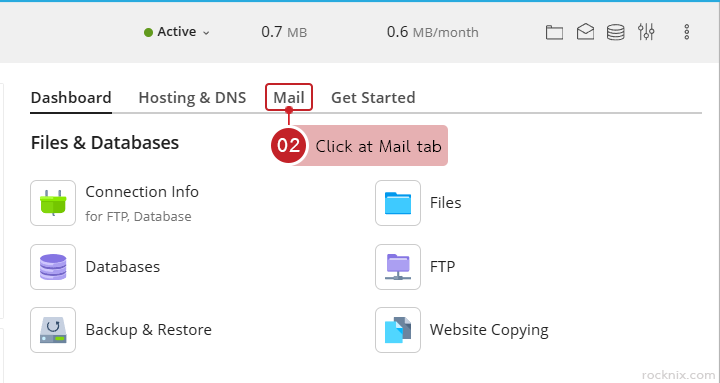
Click at Mail tab of the domain where you want to limit outgoing emails.
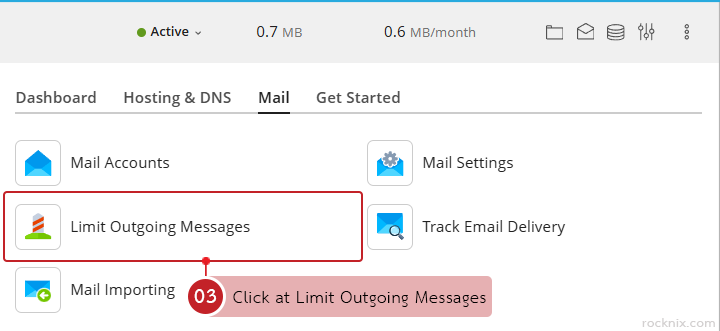
Click at Limit Outgoing Messages
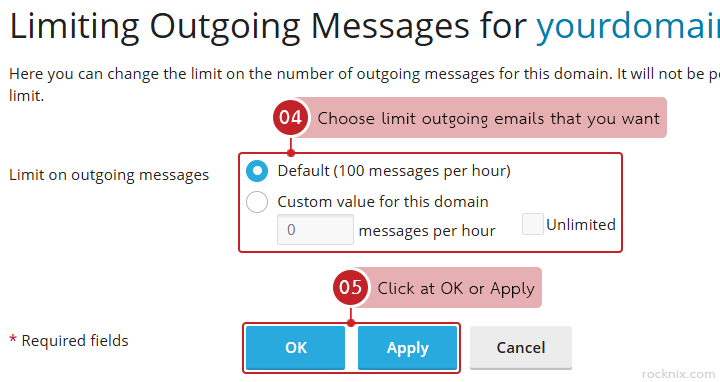
Choose limit outgoing emails that you want from Limit on outgoing messages section, you can choose one of the following options:
- Default (100 messages per hour): Uses the system’s default limit of 100 emails per hour.
- Custom value for this domain: Lets you set your own hourly sending limit for that specific domain.
- Unlimited: Removes the sending limit for the domain.
When finished, click at OK or Apply to save the settings.
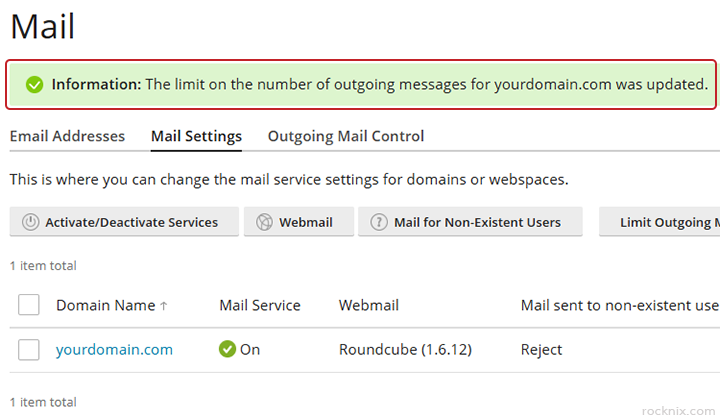
Plesk will confirm that the domain’s outgoing email limit has been updated successfully.
- If your website uses automated email sending, such as contact forms, sign-up systems, or notifications, it should be configured to handle actual usage.
- If the setting is too low (e.g., 10–20 emails/hour), it may cause:
- Emails from the website are incomplete.
- Some users have not received emails, such as registration emails or password reset emails.
- If the setting the is too high, or Unlimited, may cause:
- If your website is hacked or contains malicious scripts.
- The system could be used to automatically send large amounts of spam.
- This risks email distribution being suspended or your domain/IP address being blacklisted.
If you’re looking for secure and easy-to-manage hosting, you can explore available plans to find one that fits your website.