Keeping your Plesk password up to date is a simple but important way to protect your hosting account. If you want to change the password you use to sign in to Plesk, you can do it directly from your account settings in just a few steps.
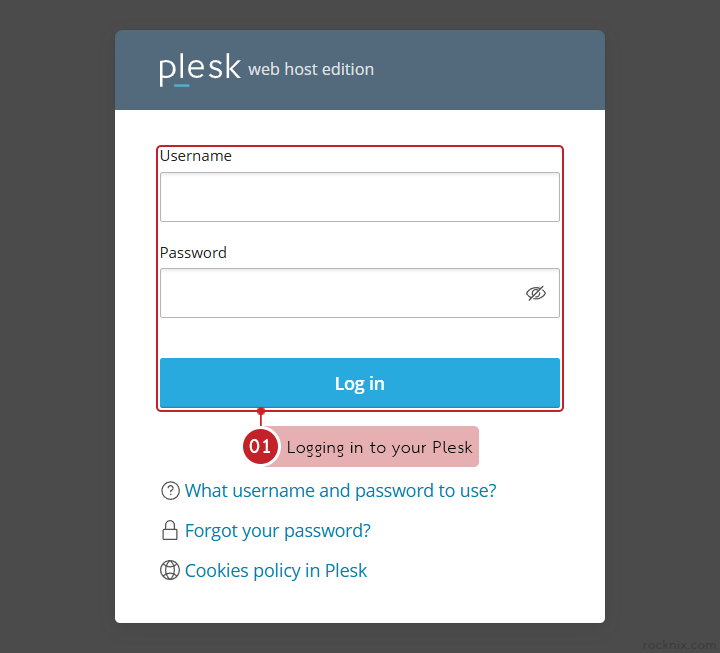
Start by logging in to your Plesk control panel.
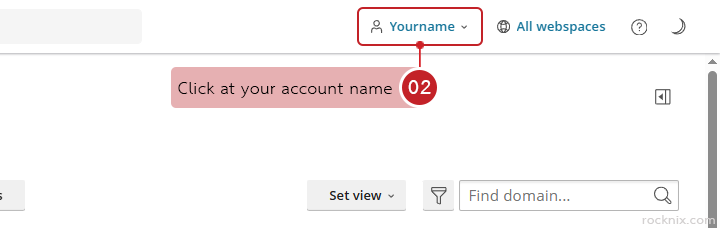
Click at your account name in the top-right corner of the Plesk dashboard.
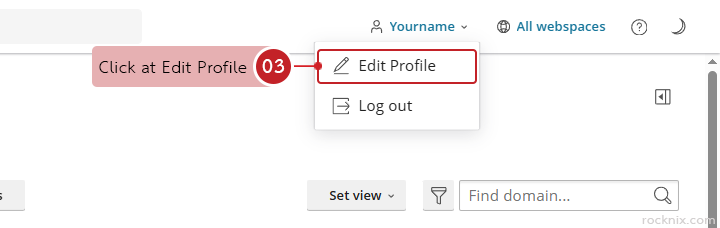
Click at Edit Profile
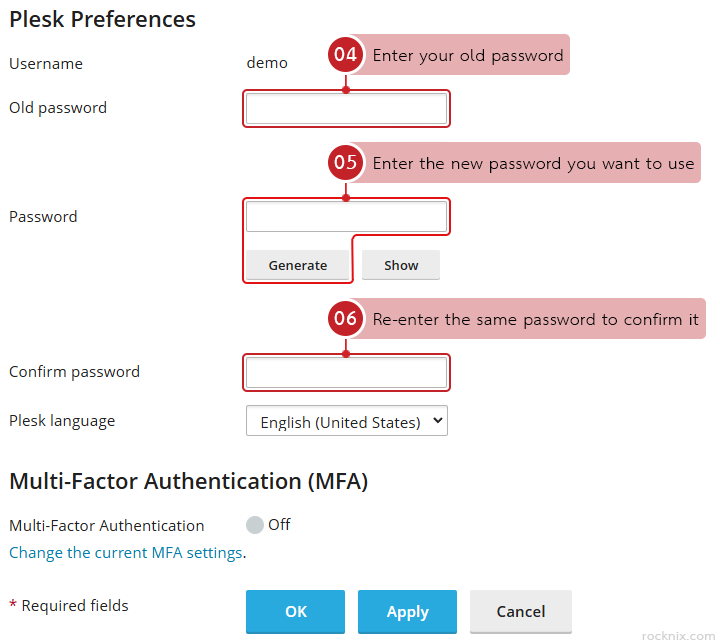
In the password section, fill in the following fields:
- Old password: Enter your old password.
- Password: Enter the new password you want to use.
- Confirm password: Re-enter the same password to confirm it.
To keep your hosting account secure, use a password that is:
- Long and difficult to guess
- A mix of uppercase and lowercase letters
- Combined with numbers and special characters
- Different from passwords you use on other services
If available, using Plesk’s built-in password generator is usually the safest option.
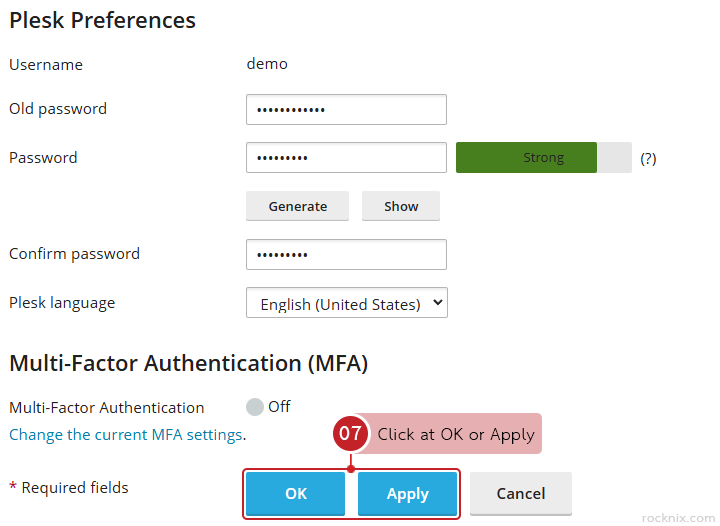
Click at OK or Apply to save the changes.
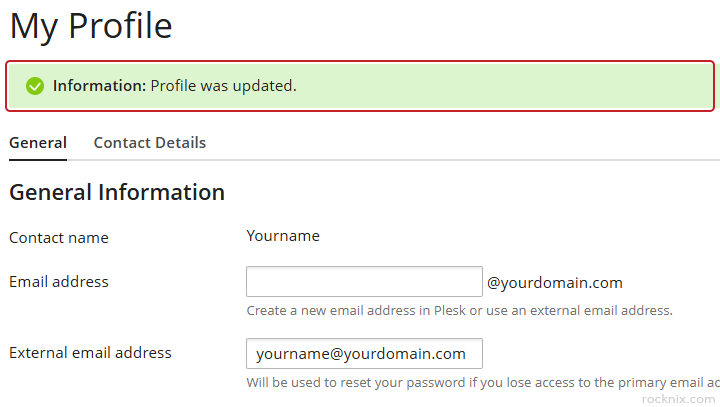
Plesk will confirm that your profile information has been updated.
- The new password becomes active immediately after you save the changes
- If you are using services linked to this account (such as FTP, databases, or email), you may need to update the password in those services as well
- Avoid reusing the same password across multiple services to reduce security risks
If you’re looking for secure and easy-to-manage hosting, you can explore available plans to find one that fits your website.